How to Track ChatGPT and Perplexity Traffic and Leads in GA4
How to track ChatGPT traffic in GA4 (and tie it to leads) To track ChatGPT traffic in GA4, open Reports > Acquisition > Traffic acquisition, switch the dimension to session...
How to track ChatGPT traffic in GA4 (and tie it to leads)
To track ChatGPT traffic in GA4, open Reports > Acquisition > Traffic acquisition, switch the dimension to session source / medium, and look for chatgpt.com and perplexity.ai. To tie that traffic to leads, group those sources into a custom channel and compare their key events, such as form submissions and booked calls, against your other channels.
This guide is built for teams without an analyst. Every step ends at a lead, not a session count, because sessions are not what your boss or client is judging you on.
How ChatGPT and Perplexity traffic shows up in GA4
Before you build anything, you need to know what you are looking for. AI visits show up in GA4 as ordinary referral sessions unless you tell GA4 otherwise, so they get buried among every other site that links to you.
The source and medium names to look for
Perplexity usually appears as perplexity.ai / referral. ChatGPT appears under its own domain, which has shown up as chatgpt.com and the older chat.openai.com. Other sources worth watching are claude.ai, gemini.google.com, and copilot.microsoft.com.
Source names change as these products change, so check your own data for variants rather than trusting a fixed list.
What GA4’s AI Assistant channel catches (and misses)
There are two catches. Digital Applied notes that the native channel misses Perplexity and dark traffic. And it only classifies new data under Google’s rules, so you cannot add your own sources to it. That is why a custom channel group is still worth building, and why Step 4 exists.
Step 1: Track ChatGPT traffic in GA4 by session source
Start with the quickest check. It takes about five minutes and tells you whether you have anything to measure.
Filter Traffic acquisition by session source
In GA4, go to Reports > Acquisition > Traffic acquisition.
Change the primary dimension from Session default channel group to Session source / medium.
Use the search box above the table and type “chatgpt”, then repeat for “perplexity”, “claude”, “gemini”, and “copilot”.
Set the date range to at least the last 90 days so small sources show up.
Write down sessions and key events for each source. If the numbers are small, that is normal. What matters at this stage is that you can see the traffic exists and where it lands.
Save an exploration so you never rebuild this report
Go to Explore and create a free-form exploration. Add Session source / medium and Landing page as rows, and Sessions, Key events, and Session key event rate as values. Add a filter on Session source that matches a regex such as chatgpt|openai|perplexity|claude|gemini|copilot.
Name it “AI referrals” and save it. Next month you open it instead of starting over.
Step 2: Build a GA4 custom channel group for AI referrals
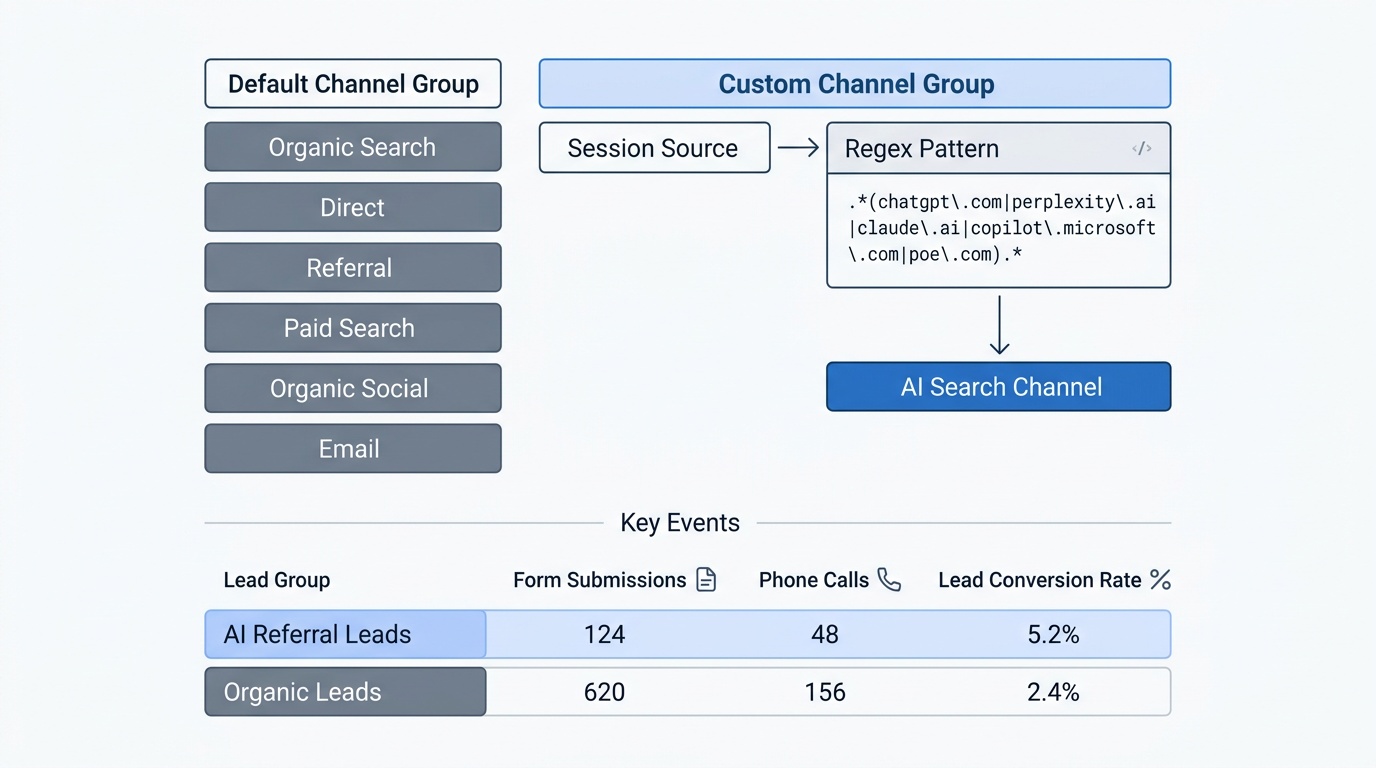
An exploration helps, but it lives in one place. A GA4 custom channel group makes AI its own channel in every standard report, so you can compare it with organic, paid, and direct without extra filters. According to Ryze, that is the most effective way to measure AI referral traffic across every report at once.
Copy the default channel group in Admin
Go to Admin > Data display > Channel groups, then create a new channel group. Start by copying the default group so you keep all the standard channels you already use. Name the new group something obvious, like “Default + AI”.
Add an AI channel with one regex covering ChatGPT, Perplexity, and others
Add a new channel called “AI search”. Set the condition to Source, choose “matches regex”, and paste a pattern like this:
The single pattern covers ChatGPT and Perplexity referral traffic along with the other major assistants. Because it is one regex, adding a new AI tool later means editing one line. Keep the Medium condition out of it, since you want the source to decide.
Order the channels and apply the group to your reports
GA4 checks channel rules from top to bottom, and a visit takes the first rule it matches. Drag “AI search” above Referral, or AI visits will still land in Referral. Save the group.
Then open any acquisition report, and switch the channel group dropdown to your new group. Custom groups are applied when you view the report, so your historical data should reclassify as well.
One tidy-up: the native AI Assistant channel and your custom channel may overlap. Use your custom group for reporting and treat the native channel as a cross-check.
Step 3: Track AI search leads with key events
This is the step most guides skip. A channel group tells you where visitors came from. Key events tell you whether any of them became a lead. To track AI search leads properly, you need both.
Mark form submissions and phone calls as key events
In GA4, key events are the actions you care about most. Go to Admin > Events and mark the relevant events as key events. For most lead-gen sites, that means:
A form submission event, fired on the thank-you page or by your form tool
A click on your phone number (a tel: link), which usually needs a Google Tag Manager trigger
A booked call, fired when your scheduling tool shows its confirmation screen or redirects to a confirmation page
Test each one yourself in GA4’s DebugView before you trust it. A key event that never fires makes AI traffic look worthless when the problem is the tag.
Compare key event rates: AI referrals vs. organic search
Open Traffic acquisition with your custom channel group and add Session key event rate. Put AI search next to Organic Search and Direct. Then click into the landing pages for AI sessions to see which pages turn visitors into leads.
Volume will be small, so read the pattern, not the decimal. If AI visitors convert at a similar or higher rate than organic visitors on the same page, you have a reason to invest in being cited more often. If they bounce, look at what the landing page promises.
Pass the AI source into your CRM with a hidden form field
GA4 forgets who a lead was once they leave your site, so your CRM never learns which leads came from AI. Darwin Apps recommends pairing the channel group with UTM parameters and a hidden form field, then mapping that field into the CRM.
The practical version looks like this:
Add a hidden field named “first_source” to every lead form.
Use a small script in Google Tag Manager to read the referrer or UTM source on the first page view and store it in a first-party cookie.
Fill the hidden field from that cookie when the form loads.
Map the field to a lead source property in your CRM.
Now a salesperson can filter closed deals by AI source, which is the report your leadership will actually ask for.
Step 4: Close the gaps GA4 can’t see
Your GA4 numbers for AI will be too low. Fine Media puts it plainly: referral data is a floor, not a full count, because a visit only counts as ChatGPT traffic when the referring source is correctly identified.
Why AI app visits and copied links show up as Direct
Several things strip the referrer before GA4 sees it. Digital Applied lists referrer-policy headers, noreferrer link attributes, in-app WebViews, and copy-pasted URLs. Adswerve covers why AI traffic looks underrepresented in GA4 in more detail.
When a visitor taps a citation in a mobile app, or copies your URL out of a chat and pastes it into a new tab, GA4 has no source to record. The session lands in Direct. No setting fixes this, so you need a second source of truth.
Add a “how did you hear about us” field to your lead forms
The standard fix is self-reported attribution: you ask people how they found you. Add a free-text field to your lead forms with the label “How did you hear about us?” Free text beats a dropdown, because people write “ChatGPT told me about you” when a dropdown would only offer “Search engine” or “Other.”
The payoff can be large. Omniscient Digital reports that its field identified 6.8x as many AI-sourced leads as first-touch analytics. Your ratio will differ, but the direction is likely the same.
Ask the same question on your booking page and train sales to ask it on calls. Tag the answers in your CRM with a simple label like “AI (self-reported).”
Watch Direct traffic to deep pages for AI spillover
Direct traffic to your homepage is mostly people typing your name. Direct traffic to a deep article or service page, with no campaign behind it, is suspicious. People rarely type those URLs.
In Traffic acquisition, filter to the Direct channel, add Landing page as a secondary dimension, and look for pages that have recently been cited by AI tools. A rise in Direct sessions to those pages after you start getting cited is a decent hint that AI spillover is hiding there. Treat it as a hint, not a count.
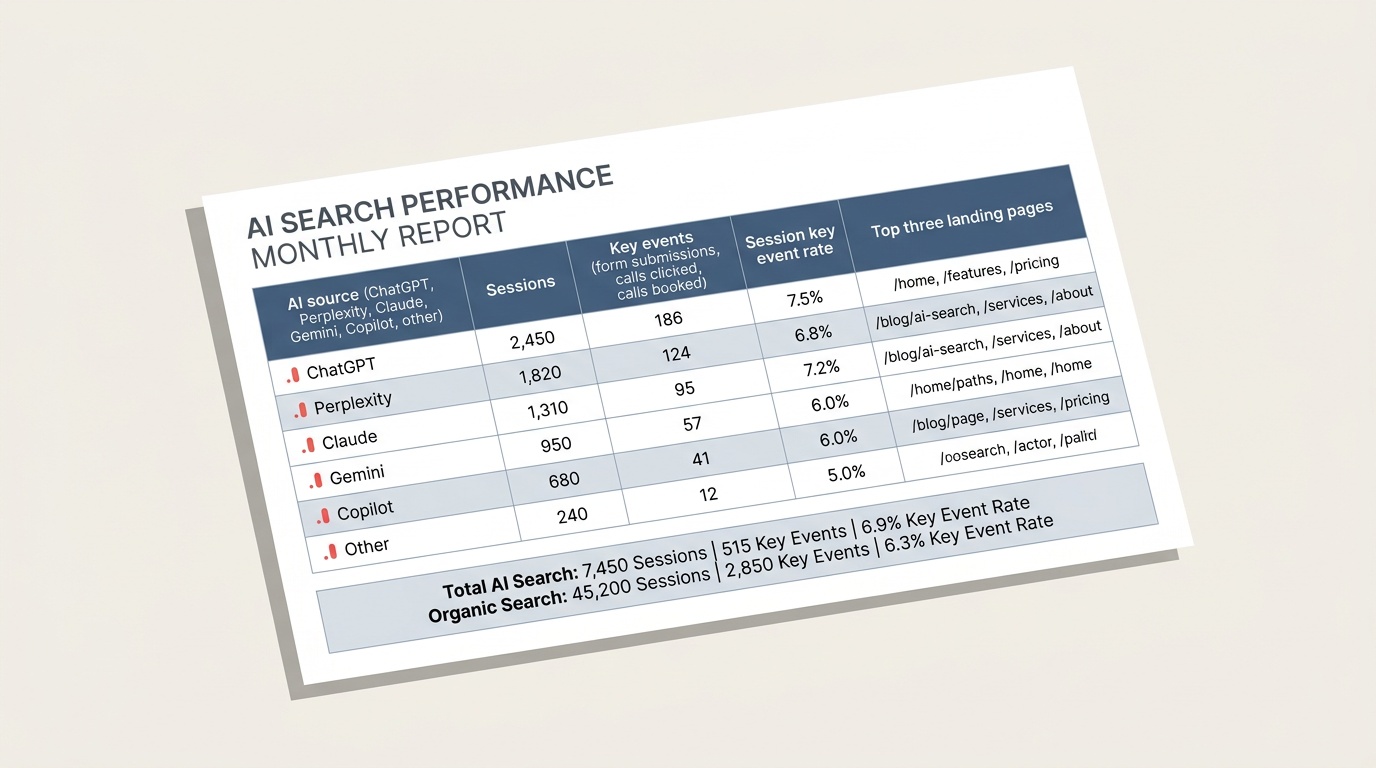
What a clean AI-referral report looks like
Once the pieces are in place, you need one view you can open in a meeting without apologizing for the data.
Below the table, add one line for total AI search against Organic Search so the comparison is always in front of you. Report the AI platforms as a group first and by platform second. Rocketship found that ChatGPT’s share of B2B AI referrals fell 26 points in 8 months, so a report that watches only one platform can mislead you as the mix shifts.
Read GA4 numbers next to self-reported answers
Add a second small table underneath: leads whose self-reported answer mentions an AI tool, and how many of them GA4 also credited to AI. The gap between the two is your undercount.
If GA4 credits 10 leads to AI and your form field surfaces 25 mentions, report both and say why. The GA4 number is the floor, the self-reported number is closer to the ceiling, and the truth sits between them. That framing holds up better in front of a skeptical client than a single number you cannot defend.
Get your AI tracking setup reviewed
If you have worked through the steps and still cannot say how many leads and booked calls came from ChatGPT or Perplexity, the issue is usually one of three things: a key event that never fires, a channel group in the wrong order, or a form with no source field.
Growth Rocket offers a strategy call where we review your current GA4 setup, check your key events and channel group, and map out where AI-driven leads are likely slipping through. Book one, and bring access to your GA4 property and your main lead form.
HTTP/2 is a significant upgrade from HTTP/1.1, offering faster page loading times, reduced latency, and improved security. It's essential for modern websites, especially those with resource-heavy content or a focus on mobile performance.
Google has rolled out its first core update for 2022. The Growth Rocket team looks at how this update shook up search rankings and how you can recover.
Google Analytics (GA) has evolved since Google launched it in late 2005. One of the best digital marketing tools for small businesses started as a service incorporating the core...